Editorial Freelancers Association

EFA Events
News & Blog
Learning and Making Industry Connections as an Event Volunteer
Want to learn more about industry trends or to make connections with fellow editors and potential clients? Volunteer at the EFA table at upcoming events such as ACES in San Diego and the LA Times Festival of Books!2024 EFA Rate Chart Now Available!
After spending the last two months reviewing, analyzing, and formatting the mountains of data EFA members provided in response to our 2023 rates survey, conducted from November 2023 through mid-January...Behind the Scenes at the EFA
So much goes into the running of an organization like the EFA—the day-to-day tasks, the overarching vision, all the things that must be planned and executed and kept track of—much of it behind the scenes. We’ve interviewed some of the folks who make it happen around here. Read on to learn a little bit more about them.Quick Links
Contact Us
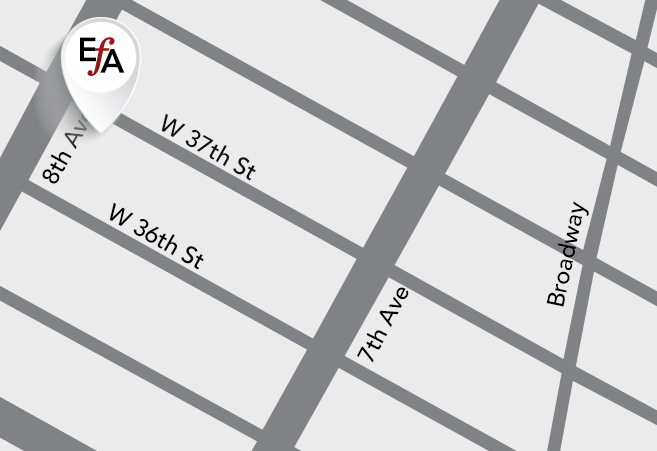
266 West 37th Street, 20th Floor
New York, NY 10018
Monday - Friday, 9 a.m. - 5 p.m. EST
Tel: 212-920-4816
Tel toll-free: 866-929-5425

Find us on: